
How to Place a Hotspot?
Placing or Drawing a Hotspot
1. After finding your place of interest on the map begin by locating the taskbar on the left side of the homepage.
2. Click on either the circle or polygon icon to begin drawing a hotspot.
3. Note that editing or moving your hotspot will reset the matching process.
Drawing a Circle
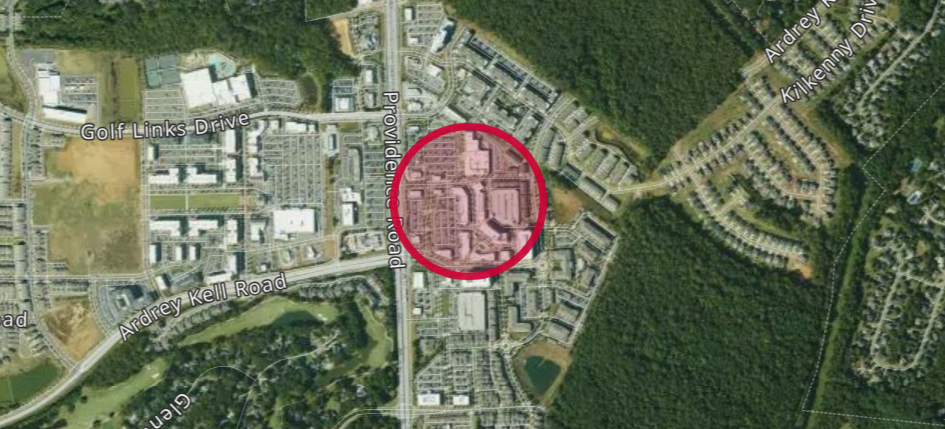
1. Select the circle icon on the left then click and drag anywhere on the map to begin drawing your hotspot.
2. To edit your circle hotspot, select the icon below with the pen and either click and drag the white square to enlarge or shrink the circle or click and drag the image in the center to move the circle on the map. Click "Save" when you have finished editing.
4. If you would like to remove your circle hotspot, select the trashcan icon and click any place on your hotspot to delete it. Make sure to save to click "Save" to make this permanent or "Cancel" to undo it.
Drawing a Polygon
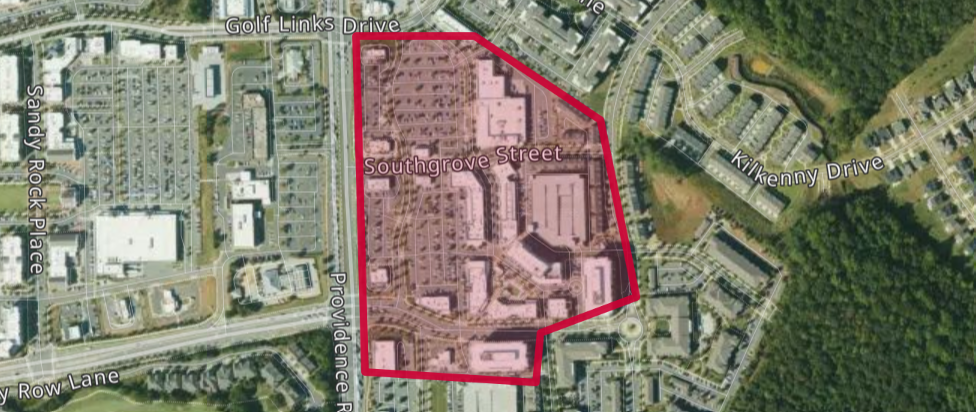
1. Select the polygon icon on the left and click anywhere on the map to place your first point. Continue placing points to create the outline of your polygon. If you do not like the last point placed, click "Delete last point."
2. When you are done either connect your last point with initial point or click "Finish."
3. To edit your polygon hotspot, select the icon below with the pen and then click and drag any of the white squares to change the shape and size of your hotspot. Click "Cancel" at any point to undo changes made. Click "Save" when you have finished editing.
4. If you would like to remove your polygon hotspot, select the trashcan icon and click any place on your hotspot to delete it. Make sure to save to click "Save" to make this permanent or "Cancel" to undo it.